Method for normalizing a relation to BCNF based on functional dependencies

In the previous post I showed the method I use to determine the candidate keys and highest normal form of a relation. Now let’s break these large relations into smaller ones to make sure we achieve Boyce-Codd Normal Form (BCNF)!

Normalizing a relation, step by step:

  • Begin with your candidate key. If you have many CK:s, choose one them. This will be your first relation. Underline all attributes in the CK to indicate the key.
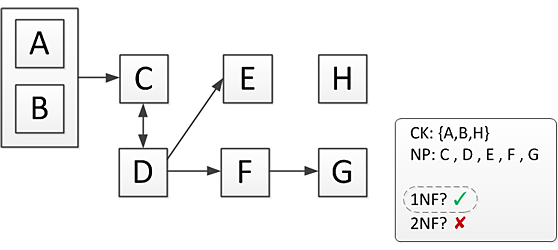
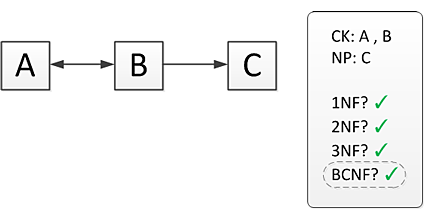
  • If there are stand-alone boxes, your first relation must contain only the CK, and no other attributes (example 2). Otherwise, your first relation can include additional attributes (example 1).
  • Now follow the arrows leading away from the current box. For each arrow, add this destination box (attribute) to the current relation. The the source box will be the key of the relation, and the destination box(es) non-key attributes.
  • Normally you only step one box ahead at a time and then start a new relation. But if an arrow between two boxes is double ( <-> ) you include the next box too in the same relation (B<->C in example 1).
  • When dealing with double arrows, both attributes may be set as keys. In example 1, the grayed out “or” relations symbolize this, because it allows you to split your relations in different ways. Both of these ways are valid.
  • Continue to the next box(es) and repeat the above steps. When you have covered all boxes, you should have a fully BCNF normalized set of relations!

Let’s do some examples:

normalizing1

Example 1

As you can see, I like to cover the boxes I have drawn with my hand to make it easier to see what to focus on. In the pictures, the black boxes show what to focus on; the gray boxes can be ignored.

So, with your hand cover the arrow(s) pointing away from the last box you are working on. What you see is the boxes to include in the current relation. Now look at the arrow pointing towards the last box(es). Double arrow indicate if you are to move your hand one step further, still in the same relation. Single arrow indicate that you should close the relation and start a new one.

One final example:

normalizing2

Example 2

normalizing3

Normalizing Example 2

Good luck!

Posted in Tutorials | Tagged , , , | 5 Comments

Method for determining candidate keys and highest normal form of a relation based on functional dependencies

For my advanced database systems course I needed to learn how to take a given relation and functional dependencies, tell the highest normal form and then normalize it up to BCNF. It’s actually not that hard, but there are a lot of pitfalls to watch out for. Here I’m going to show the methods I learned to solve the exam questions. I need to give credit to the mentors and StinaQ for their help and tutorials!

Visualizing the dependencies

You start with a given relation and its dependencies. For example:

The trick is to draw boxes in order to visualize the dependencies (ignore the right hand side CK/NP box for now):

relation1

Example 1

Note that B->{A,C} was broken down to B->A and B->C thanks to the decomposition rule.

Let’s try a more tricky one:

relation2

Example 2

Note that B and C in this relation is a composite key that together determine D. Thus we draw a box around both of them to illustrate this dependency. And don’t forget F, even though nothing is pointing to it!

Candidate Keys & Non-Primes

It’s time to determine the candidate keys (CK:s). Recall that a CK is one or more attributes that with which you can determine all other attributes in the relation. (In the end, one of the CK:s will be chosen to be the primary key.)

To find the candidate keys:

  • Begin by selecting a start box (this can be a composite key too). If there is a box at which no arrow is pointing, this is usually a good place start. Follow the outwards arrows to the next box, and from this box to the next and so forth. The goal is to find find a way that covers all boxes.
  • If you can’t cover all boxes, try another starting box. If no single attribute (i.e. box) is able to cover all boxes by itself, the CK needs to include one or more additional attributes.
  • There can be many candidate keys, so repeat this until you are sure you haven’t missed anything.
  • If no arrow points at a box, the rule is that it must be part of all CK:s. This includes stand-alone boxes like F in example 2.
  • A candidate key is a minimal super key. Minimal means that you can’t remove any attribute from the key and still determine all other attributes. Note that you can still have keys of different sizes. For example, {A} and {B,C} in Example 3 below can both be candidate keys. But {A,B,C} would not be minimal since you could remove either {A} or {B,C} from it and still determine the relation.

Now that all CK:s are determined, also write down the non-primary attributes (NP). The Non-Primes are simply all attributes that are not part of any CK.

Finding the highest normal form

It’s time to determine the highest normal form of the relation. I will not use the exact formal definitions here, but you should learn them too in order to understand what’s happening here, especially if you need to motivate your answer on an exam!

  • Is the relation in 1NF? Yes, always!
  • Is the relation in 2NF? Is there a composite CK? If not, 2NF is automatically achieved. Otherwise, check your boxes. In any of your composite CKs: does a part of it (i.e. a box inside the composite box) by itself determine (point to) a non-prime attribute? If yes, NF2 does not pass (and the relation is thus in 1NF).
  • Is the relation in 3NF? Does the relation have any non-primes? If no, the relation is automatically in 3NF! Otherwise: Is there a non-prime that determines (point to) another non-prime (resulting in a transitive dependency because the last non-prime is determined indirectly)? If yes, 3NF does not pass (and the relation is thus in 2NF).
  • Is the relation in BCNF? Are all the determinants also candidate keys? If yes, BCNF pass. This is easiest to check by looking at the dependencies you were given (e.g. A->B and B->{A,C} in example 1) and check that each key (left hand side of the arrow) is in your list of CKs.

Let’s try this! Here is another example:

relation3

Example 3

First find the CK:s. We can easily see that {B,C} together determines A and D. Since D also determines E, starting with {B,C} can determine all other attributes and is thus a CK. But wait! Since A determines {B,C} it must be a CK on its own!

Now that we have the CK:s, we see that D and E are not part of any CK, so they are non-primary attributes.

All relations are already in 1NF, so we note this. How about 2NF? There is a composite key {B,C} so we need to check if part of it can determine a non-prime on it’s own? Not a problem; this relation is in 2NF! 3NF say that a non-prime must not determine another non-prime. Here is a problem, since D determines E. Thus 3NF does not pass, and the relation only achieves 2NF!

Note the circle I draw to indicate the highest NF, e.g. 2NF in the above example. Since 3NF did not pass, the highest NF is 2NF. If you don’t do this, it is easy to make a mistake and pick the last one as the highest NF.

Tips

  • When you have finished drawing the boxes, do a final count of all attributes in R() and make sure they are all present as boxes. It’s very easy to forget the ones without any dependencies otherwise!
  • Remember that for example a 3NF relation is also in 2NF. If an exam question is “is the relation in 2NF?” and you determine that the highest NF is 3NF, then the answer to the question is true. Don’t mix up “highest” vs “is in”.
  • This page allows you to check that you have correctly determined the CKs and normal forms. It’s a bit quirky to use, but very convenient!

In the next post I will continue this tutorial and show how to normalize the relations to make sure they are in BCNF!

Please note that I do not have time to answer questions about this topic in the comments.

Posted in Tutorials | Tagged , , , , | 64 Comments

Preventing RSI could be as easy as switching mouse hand

I started using computers when I was about 17. By the time I was 20 I had a full time job servicing computers at an organization. At this time I began having uncomfortable, sometimes painful, feelings in my right wrist when using the computer mouse.

Computer workers risk injury to their hands, arms and wrists due to Repetitive Strain Injury (RSI) or Carpal tunnel syndrome (CTS). Being aware of this I began worrying and decided to switch to using the mouse with my left hand instead. I am left handed, so this might sound trivial. But I only write with my left hand. Everything else feels more natural for me to do with my right hand. So switching mouse hand was not easy. It’s hard to remember, but it probably took me about half a year before I felt comfortable using the mouse with my left hand. I don’t regret it though, as my problems went away and I have not had much problems since.

While I am fully capable of using the mouse with both my hands today, I prefer the left hand. For some reason, the uncomfortable feelings in my wrist tend to return very quickly when I use the right hand. It might have something to do with how I hold the mouse. I think I have a more relaxed grip when using the left hand. It could also be that my right arm is simply more sensitive.

Some things you should know about:

  • Most computer mice can be used by both hands. This is true even if they have an unsymmetrical shape. You simply hold it a little bit different. It may sound odd, but they are actually still comfortable that way. Only the most extreme designs would be unsuitable for left handed use.
  • There is no need to flip the mouse buttons in the system settings. There seems to be a misconception that you need to use your index finger with the main mouse button, requiring you to flip the mouse buttons for left handed work. But this is not true. You simply use whatever finger feels comfortable to you. I find myself using my middle finger, sometimes in combination with my index finger which gives me a comfortable rest for my fingers.
  • If you have a standard sizes keyboard, the numerical keypad on the right side will make the keyboard extrude further to the right than to the left. The typical right sided position of the mouse forces your arm into a slightly awkward angle in order to reach it. This is not a healthy position. An advantage of putting the mouse to the left leads to a more natural position. (You might consider buying a keyboard without a numerical keypad if you want to continue having the mouse on the right side.)
  • Even though I am fully capable of controlling the computer with my left hand, when playing FPS games I still switch back to my right hand. Gaming tends to require high precision, and I simply feel faster and more accurate that way.
  • Keyboard aficionados will find it more difficult to use common shortcuts such as copy/paste (ctrl+c/v) in combination with mouse work. Either you have let go of the mouse, or awkwardly use your right hand to press the keys. On the other hand (pun not intended) your right hand is free to use on for example the numpad. (update: there is actually a copy/paste combination for the right hand too – see comments below)
  • Variation is key to preventing RSI. Training yourself to use both hands doubles your potential work positions.
  • At work I have two mice, one on each side of the keyboard. I use them both without thought, just grabbing one of them whenever needed.

I want to stress that this post is based on my personal experience. You may not have the same problems, symptoms and remedies as me. But if you have problems with mouse arm I think it’s worth try to change mouse hand. The only requirement is really that you move your current mouse to the other side of the keyboard and give it some time to get used to.

Posted in Articles | Tagged , , , , , | 3 Comments

How to send Exe files with GMail

As a software developer I often need to send exe-files by mail. Typically I send beta versions or bug fixes of my programs for people to try out and report back to me. But a lot of people use GMail today, and it does not allow attaching executables to mail, neither directly nor in zip files. What to do?

One solution is to upload the file to your web server or other file host and simply include a link in the letter. Another alternative is to compress the file with 7-zip (rar probably works too) but not everyone can open these files. So if you want to attach the exe to your letter, this is how to get around the restrictions: Simply rename your exe file and GMail will not recognice it. I typically change to something like MyApp.exe.removethis. Don’t forget to tell the recipient to rename the file back :-)

Posted in Tips | Tagged , , , , , | 3 Comments

Software piracy from a small developer’s point of view

As a hobby shareware developer I am a “victim” of software piracy. At least according to the traditional view by large software corporations and anti-piracy organization. But is this really true? Is software piracy always bad?

Let’s take Adobe Photoshop as an example. Despite being a very expensive piece of software it is used by a majority of professionals graphics workers. It is also one of the most popular pirated software, and of course Adobe complains about this. But would Photoshop be as large as it is today if it had not been possible to obtain pirated copies of it? I think not…

Imagine a young and aspiring graphics artist. Perhaps 15 years old, I dare to predict that getting hold of a legitimate copy of Photoshop is close to impossible. That leaves two choices; get a pirated copy, or choose one of the alternatives. Bare in mind that there are a myriad of very competent alternatives, some of them free, some of them cost a fraction of Photoshop. They might not be as good as Photoshop, but they are without a doubt good enough for most people (with a potential to become great if more people started using and buying it…).

Now imagine this person growing up, getting his or her first job as a graphics artist at a real company. What software is this person most likey to want to use? Probably the same software as (s)he is already used to. And so the company needs buy a license for this software. Or from the other way around, a company might already be using Photoshop. In order for them to find competent workers who already have Photoshop skills, it is necessary for Photoshop to be available to normal persons for learning purposes.

My point is that in the end, pirated software turns legitimate. Building a solid user base takes time. Pirated software can be a key to this. You may not get paid for every single copy ever used, but you might look at it as a sort of advertising.

Among my geeky friends, software piracy has always been prevalent. But as we’ve grown up and matured, gotten jobs and more money to spend, our habits have changed. I see many of my friends buying software now that they have been using illegally for a long time. I also get mail from users of my own software, ‘fessing up and buying a license.

This reasoning mainly applies to software that is used on a regular basis. Software solving one-off problems and games that you only play to finish are examples that likely would not benefit from piracy in the same way. They still might benefit some though. If the pirate is a person without funds that could never have bought it anyway, the developer has not lost any money. The person might however have liked the game and spread the word to friends, write reviews etc, providing a possible indirect stream of revenue. One person I know bought several Humble Indie Bundle packs, because they each contained a game that he had previously pirated.

But how do I feel about my own software being pirated? After all it’s easy to be positive about piracy when you aren’t affected by the (supposed) losses yourself. Well, to begin with I’m not a saint myself, so it’s hard for me to judge other people. But how much have I lost due to piracy? I have no idea. But I doubt it’s much, considering that people who use pirated software usually do not buy software att all. It might even be that I have gained from the extra publicity, as outline above.

If I see my software pirated on some site I don’t bother to report the link, even though it would not be hard for me to do. And I have actually purposely spread my own software on ThePirateBay in order to gain a little publicity. The only thing I hate and try to report is when I see “download sites” that actually sell my (and other developer’s) software. But that’s a completely different matter.

In the end, while I don’t applaud people pirating my software, neither do I condemn them. Of course I would love to see them buying my software instead. But I’d much more rather see people using and enjoying my software, than not at all!

Posted in Opinion & Thoughts | Tagged , , , , , , , , , , , | 7 Comments

Why Google isn’t my default search engine anymore

When I began using the Internet, web search technology was still in its infancy. The first search engine I can remember using was WebCrawler, mostly probably because they has a cool logo. Then I switched to Wired Magazine’s HotBot for a while, after which I settled on AltaVista which I continued using for a long time. When I began hearing about this new search engine called Google I tried it but didn’t change right away. Searching had become an integral part of surfing, and even though Google appeared to to deliver good results, changing would mean stepping away from my comfort zone which is hard to do. Eventually I realized that Google did in fact produce far better result that AltaVista, and their minimalistic design approach was also nice compared to the now bloated AltaVista portal. So like most other I made Google my default search engine and browser start page.

I was a happy Google user for a long time. In the beginning I admired Google very much. They were cool and innovative, with an open attitude with things like Google Labs. Not at all like old giants like Microsoft who felt like they wanted to own and control you and your computer. But as Google grew and matured, they too turned into one of the giants.

I remember the first time I noticed that Google was tracking me. One day, when you clicked on a search result, your click first went to a Google link before redirecting to the real page. The result links were disguised though, so unless you were paying attention you wouldn’t notice it. The next day, things were back to normal. This was probably Google experimenting with some sort of early tracking system. Of course, today all results are linked this way, enabling Google to track all your clicks.

Internet is an amazing tool for democracy. You can get information, communicate, read other’s opinions and express yourself as you wish. It is open to everyone. And you can do it anonymously. Of course, not everyone likes this. Government intelligence want to know what you are doing. Corporations want to know what you like. Privacy has become one of the major issues the last ten years. Technically, a 1984 is no longer just a fantasy. And there are forces who wouldn’t mind seeing this Big Brother society become a reality.

As privacy was becoming more and more threatened, I began feeling a dislike for the way Google works. It’s not just that they track everything you do. The sheer size of the company and their services means they are controlling a large part of the Internet; of our lives.

Knowing that Google tracks every search you make to build a profile of you, I realized that I had started limiting myself in what I searched for. I didn’t have anything to hide, it’s just this uncomfortable feeling of being watched. And since my future searches would be affected by everything I typed now, I sometimes censored myself, so as to not “pollute” my future searches. Sometimes I used a proxy prevent tracking.

There were other things too. I dislikes how Google shut down services like Labs, changed their agreements and APIs, redesigned their sites and so forth. So when I heard of this new search engine, DuckDuckGo, touting privacy as a major selling point, I tried it a few times. It never stuck though. Then, for some reason I can’t remember, I decided to set it as my new default search engine. And it stuck.

The biggest difference for me using DuckDuckGo is the feeling of freedom – of not being watched in my every move. I didn’t realize this had affected me so much before I changed. Also, DDG is still a young company. They listen to and communicate with their users. While there is no guarantee for this to continue, I do value this attitude. As for the search results, they are mostly good enough.

I still use Google for more advanced searches, and many of their other services too. (It’s hard not to…). But today I am more aware of privacy matters and how I manage my online activities. It’s up to everyone to decide how to live their life. But in order to do so, we need to be informed of how things work.

Note: I should add that DuckDuckGo is not the only search engine with a strong privacy statement. One is Ixquick, that calls itself “the world’s most private search engine” and sports image and video search too. I haven’t used it myself though, so I don’t know how good it is. If you know of any other good and private search engine (or other service), write a comment!

Posted in Opinion & Thoughts | Tagged , , , , , , , , , , , | 5 Comments

Boost your computer with a RAM disk

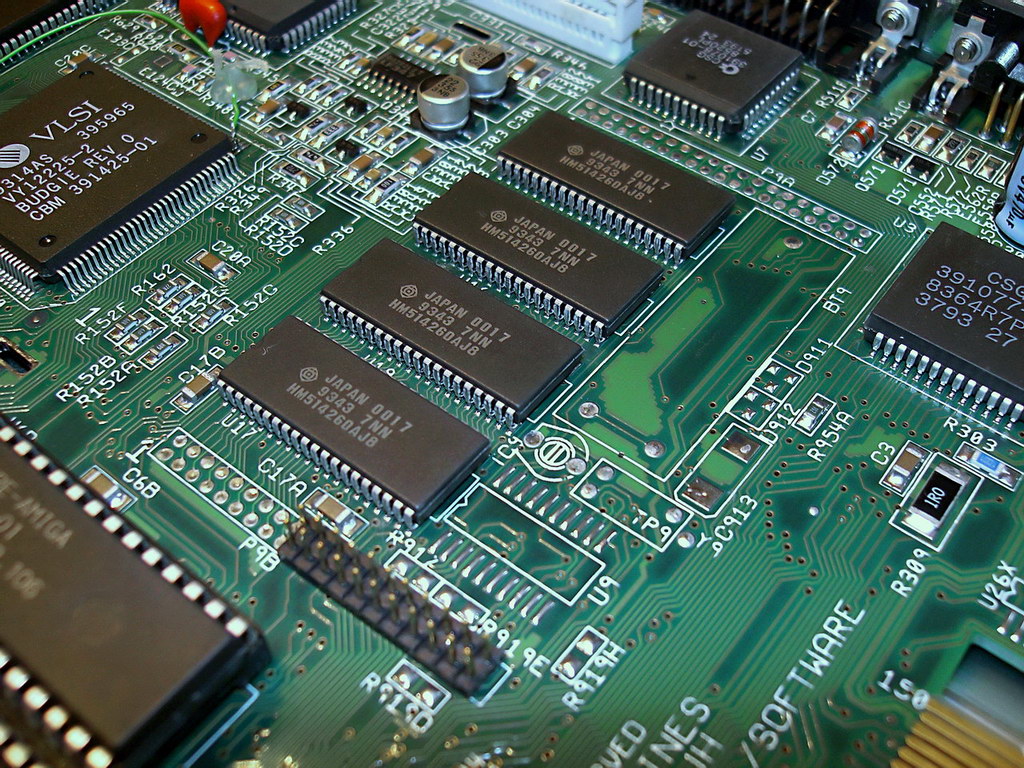
Amiga 1200 RAM ChipsComputers today are shipped with massive amounts of memory. Even a low-end computer has 4 gigs of RAM, and it’s not uncommon to get 6 or 8 GB. But 4GB is more than enough for your typical Windows 7/8 installation. So if you have more than 4GB of memory and don’t use memory intense software, why not put that superfluous memory to some good use?

A RAM disk allows you to allocate memory and mount as a disk, acting just like a hard drive. The RAM disk is assigned a drive letter and you can use it like any other disk. The main advantage of this is that memory way faster your typical hard drive, outperforming even SSD’s. Here are the main advantages and disadvantages of using a RAM disk:

Advantages

  • A RAM drive is about the fastest type of drive you can get. The access time is virtually none and read and writes are blazing fast (Crystal Disk Mark reports over 5000MB/s on my computer!).
  • Traditional storage media such as magnetic hard drives and flash based memory has a limited amount of write cycles. Although usually not a problem, using a disk heavily wears the drive. In comparison, RAM can not be worn out, even if you constantly write to it for hours!
  • When power is lost, so is the data. And unlike most other storage media, it is not possible to recover any data, not even with sophisticated forensics. Usually this is seen as a disadvantage, but it can also serve as an extra security layer for sensitive data that needs to be kept secure.

Disadvantages

  • The main disadvantage is that RAM is not persistent, and everything on the disk is lost on power loss or reset. It is however possible to save the content to your normal hard drive when shutting down the computer, and restore it again at startup. This is quite slow though, and does not protect against accidental power failure.
  • Computer memory is usually scarce and should be used as normal memory in the first place. Using a RAM disk lowers the amount of memory available to applications, increasing the risk of running out of memory and causing heavy pagefile usage. (You can however place your pagefile on the RAM disk to make the memory available to them again. It  does introduces some other problems, but I think it’s kind of clever :-) )
  • RAM is much more expensive than a normal disks and most people will only be able to afford to put aside a relatively small amount of memory, thus limiting what you can do with the drive. For the time being, only enterprise setups can afford large RAM based disks (together with UPS to prevent any loss of data due to power failure).

So what do you use a RAM drive for? I find it to be very useful for unpacking compressed zip/rar files. It is very fast and you almost never need to clean up afterward since the drive cleans itself. You can also assign the Windows TEMP folder to the RAM drive. Many programs use the temp folder regularly, so this can make them faster. (Beware though, as the size of the RAM disk is limited it could cause trouble if a program decides to use the temp folder heavily.) Again, an advantage is that the temp folder is automatically cleaned on reset. There are many other ways to use a RAM drive and I find it to be a convenient resource to have on my computer in many situations.

To use a RAM disk you need a driver software. See this paper (pdf) for various software vendors. I use Dataram Ramdisk, which is free for personal use. The program is very straightforward to use. You install it and setup your disk. After this is works silently in the background and automatically mounts the RAM disk at startup. I’ve used a year without problems. My computer has 8 gigs of memory, and I chose to devote 2 of those to my RAM drive. For me this has been a good compromise. I sometimes use more that 1GB but almost never reach 2GB. And 6GB for the rest of Windows is more than enough for my usage.

Update: Check out gHacks for an excellent overview of different free RAM disk program.

Posted in Software | Tagged , , , | 1 Comment

Try a new PDF reader and you’ll never go back to Adobe Reader!

PDF has become the de facto standard for publishing electronic documents. Adobe created the file format and their Reader software enjoys a near-monopoly on reading PDF documents. But did you know that PDF is an open file format, allowing anyone to create applications that read and write PDF files?

Many consider Adobe Reader a pain to work with. It is slow to start, feels bloated and unresponsive, has little support for editing, clogging your system with background processes and constantly requires attention for updates that fix security issues. If you agree on this, then you definately should look for an alternative PDF viewer!

There are many PDF readers to choose from. In this post I’ll talk about two PDF readers I really like, and explain why I prefer them to other readers.

Sumatra PDF

Sumatra PDF is without a doubt my favorite PDF reader, and it has changed the way I view and manage PDF’s. This open source application is super fast and very easy to use, with excellent hotkey support and nice usability features such as opening documents at the same position from where you previously left. In addition to PDF, Sumatra is able to read many other document formats: eBook (ePub, Mobi), XPS, DjVu, CHM, Comic Book (CBZ and CBR), which makes it the most versatile document viewer that I know of. Compatibility is excellent, although some advanced features such as filling out forms and annotations are missing. But for the 99% of the time you don’t need such features, SumatraPDF is a real gem! It is also actively developed adding new features all the time.

To make Sumatra PDF even better, here’s a tip: start the program once with the command line “Sumatra.exe -esc-to-exit“. This makes it work more along the lines of a typical image viewer, allowing you to close the program with the escape key. Together the with non-existing load times this makes handling PDF’s a joy! (You can even press Ctrl+Shift+Left/Right to open the next pdf in the folder to mimic the PgUp/PgDown in most image viewers!)

PDF-XChange Viewer

The other program I want to highlight is called PDF-XChange Viewer. It’s not as fast as SumatraPDF and I’m not sure I would recommend it as your main PDF viewer, but it does offers a number of features that you usually have to pay for in other programs. The main reason to use it is for the annotation features. You can highlight text, add new text, draw boxes and other figures and so on. You can also flip pages and edit the metadata. Another handy feature is the ability to search all PDFs in a folder. One nice feature is if you have a PDF consisting of scanned documents, you can use the built in OCR feature to add a text layer to the PDF that you can then copy, search or highlight.

Unlike other similar applications, the free version does not add a watermark when saving the document, currently making XChange the best choice for editing PDF’s that I have found yet. There is a paid version with even more functionality, but I find that the free version contains everything I needed so far. But beware! The installer installer includes ad-ware that you need to uncheck in the advanced settings to avoid.

Portable Versions

Both SumatraPDF and PDF-XChange Viewer are available in portable versions as well. (If you don’t know what a portable application is, read this post for an explanation). I especially recommend getting the portable version of PDF-XChange Viewer (direct link), since it does not include the ad-ware included with the installer version.

Other PDF Utilties

There are some more applications that I want to talk about. These utilities complete my “PDF toolbox”, so I want to share them too. For more utilities you can visit Gizmo’s Freeware. If you are looking for a specific feature, chances are you can find it there! If you know of a must-have PDF software that I missed, please share in the comments!

If you need a way to create PDF documents yourself, most convenient is to install virtual printer. This allows you to “print” to PDF-files instead of a physical printer, and this works from any print-capable application! There are many to choose from. Having researched the market I chose doPDF. It works, although sometimes it acts strange and a bit annoying. But it does have one big advantage over most other pdf-printers, and that is it does not depend on GhostScript. You see, most other pdf-printers require that you install a quite large package called GhostScript, since the software itself simply acts as a frontend for GhostScript. So if you don’t want to pollute your system with unnecessary stuff, and you only have modest requirements when it comes to creating pdf documents, then give doPDF a try!

Another recommendation is the (rather macabre named) utility Briss. With this you can remove the margins of documents, which is useful to make the most out of your screen real estate.

Finally, if you come by a PDF containing images that you want to keep, you might want to take a look at PDF Image Extraction Wizard. This is a utility that I created myself because I was irritated by the fact that I could not get to the original images embedded in PDF’s and save them as separate image files without loosing any quality. It turned out I was not the only one wanting such a feature!

Conclusion

Before I found these tools, I thought working with PDF’s was a pain. The feeling of not being in control caused me to stay away from PDF documents in general and Adobe (Acrobat) Reader in particular. But now, with these in my toolbox, I feel can finally handle PDF’s in a convenient and enjoyable way!

Posted in Software | Tagged , , , , , , , , , , , | 7 Comments

Getting right click menus to work in 64-bit Windows Explorer

Shells extensions are components that extend the functionality of Windows. The most common type is contextual menus that appear when you right click on items in Windows Explorer. For example, an archive utility can add itself to the menu to allow you to easily pack and unpack files by just right clicking on them. There is a whole bunch of extension types in addition to context menus.

A typical context menu shell extensions in Windows Explorer.

A typical context menu with several shell extensions in Windows Explorer.

With 64-bit Windows becoming the mainstream, a problem has emerged regarding such shell extensions. Since they hook into the Explorer process itself, they require using the same architecture as the Explorer process. In other words, a 32-bit extension is not able to show in 64-bit Explorer (and vice verse).

The obvious solution is for software authors to update their extensions, building 64-bit versions alongside the 32-bit version. In addition to this they also have to handle the installation process and other details to choose the right version depending on the operating system being used. As you can see, it is quite a lot of work for the developer, and not everyone is willing to put in the time.

Another problem is the one I have encountered in my program Flash Renamer. The shell extension in Flash Renamer was developed in a programming language owned by Microsoft, but Microsoft suddenly decided to stop updating it, and never made a 64-bit version of the language. There is no way for me to update the shell extension to 64-bit. The only solution would be to completely re-write the extension in another language, which is far from easy and quite time consuming.

I can think of more problems. No all developers have yet had the time to update their software even if they wanted to. Shell extensions are difficult to develop, and the software company or division might have lost the competency. Then there’s abandoned software and software past its support term that is no longer being updated.

So, if an extension you want is only available as 32-bit and you use 64-bit Windows, what can you do? Here are some solutions I have come across:

  • The reason 32-bit extensions do not work is because Windows Explorer is 64-bit. But if you use another file manager, such as Total Commander, the shell extensions will show up (provided it is 32-bit and supports shell extensions)!
  • Microsoft recommends using 32-bit Explorer, which is still included in 64-bit Windows. I never got this to work myself though.
  • One of my users told me about an interesting little program called WOW64Menu. It acts as a bridge between 64- and 32-bit, allowing you to show the old menus!
  • Try to find another solution to your problem. For example, add your program to the send-to menu (%APPDATA%\Microsoft\Windows\SendTo) to be able to open files with the program that way instead of through the shell extension.
  • For the more advanced users: An idea I had was to try and find a “generic” shell extension that allows you to customize the menu content. Then you could adapt it to work with your program using the command line interface.

There is not a perfect solution that I know of, but hopefully one of these is enough to solve your problem. If you have of another solution, please share in the comments!

Posted in Tutorials | Tagged , , , , | Leave a comment

What is a portable application, and why should you use them?

Portable Windows applications have gained much popularity lately (which is kind of ironic, since originally all programs where pretty much portable). But what is a portable application? In this simple guide I will try to examine what a portable application is, show advantages and disadvantages, and point you towards how to find them.

Defining features

There is no exact specification of what a portable application is, but the following list contain the properties that are usually assumed when talking about portable software:

  • No installation. The program is delivered in a zip archive that you only need to extract into a folder of your choice (the “program folder” below) to “install” the program.
  • This program folder contains everything needed to run the application. No files need to be installed on the host computer first. The exception to this are common runtime files, such as .Net, Java and Visual Basic runtimes, that are usually already installed and in a sense can be seen as part of the runtime environment that everyone already have.
  • All application settings are saved inside the program folder. Thus if the program folder is moved, settings come along too.
  • The application does not save or change anything on the host computer outside its program folder. This includes the Windows registry.

Advantages

  • A portable software can easily be moved between different computers by just copying the program folder, since no installation is required and all settings are contained within this folder. Basically you can keep all your software (and data) on a USB stick and this is all you need to bring along you complete computing environment! This is the origin of the name “portable” itself.
  • All computer users should backup their data. Unfortunately this is often overlooked or performed irregular. With portable software you can essentially store all your programs (as well as your other data) in a single folder. This makes it very easy to backup (and recover if needed).
  • Buying a new computer is often a bittersweet experience. The joy of the new computer is soiled by the large amount of configuration required to get everything up and running again. Portable software makes this faster since you at least do not have to worry about your applications; just copy your software folder and perhaps create a few shortcuts and you are ready to go!
  • Cloud computing is the future. All your settings are stored online and eventually all programs run inside the web browser! While this is a nice idea in theory, there are many potential problems and privacy issues attached.

    Who owns your files? Where in the world (i.e. under what legal jurisdiction) are the servers located? What happens if the hosting company goes under or decides to stop providing their service? Will you even be able to export you data before they shut down? What if you don’t have online connectivity? What if the servers are hacked or an employee snoops around on the servers? What if an automated system wrongly accuses you of contraband and shuts down access to your account? What if the servers crash and it turns out the backup system was not very reliable or correctly configured?

    All of these scenarios have happened before and will happen again! As you can see, “the cloud” is not as idealistic as it is often portrayed. With portable applications you are in control of your data, applications and settings (but also responsible for it!).

  • Windows is knows for getting slower and slower the longer you use it. A contributing factor is what is sometimes called “Windows Rot”. Over time, as programs are installed and used, they tend to “pollute” the system in various way. Since portable software do not alter the system they can help keeping your computer fresh for a longer time!
  • Privacy concerned individuals will appreciate the ability to use their programs on a computer without any traces left behind.
  • Protected systems that prohibit installation of software might still allow you to run portable applications(!).

Disadvantages

  • Not all programs are available as portable packages. This is especially true for larger “commercial” software (as opposed to software by smaller independent developers).
  • Some features may not be available or different compared to a normal installation. This is typically due to the need of registering files in the system or making other changes on the host system in order for the feature to work.
  • Some programs make changes or save files on the host system that are reverted/remove upon exit. In my opinion this is not true portability, but since it may be required for the program to work or even be meaningful it may be the best alternative available.
  • Some programs may leave traces, such as files in the temp folder. This is usually not a big deal, but if you are concerned with privacy it may be best to trace what the application is doing first. Also, built in automatic Windows features might record data about applications, for example to keep a “recent applications” list.
  • You should not use Windows’ built in solutions to backup your portable software. By design it decides on its own what files to backup, and will not backup “all files” even if you tell it to(!). Program files are not considered being user data and thus excluded.

How to find portable software

  • Many software developers already provide portable versions of their software (including me). The installer version is usually the default download, but look for alternative downloads and you’ll often find portable zip distributions too!
  • Many smaller and/or open source programs are actually already portable, even though they do not explicitly say so. Program that are delivered zip files where settings are saved in a file in the program folder are likely more or less portable already! Even if a program is only available with an installer, using Universal Extractor can often extract the program files so you don’t have to install it normally!
  • Some programs contain more or less hidden settings that make it portable. Search the documentation, online forums and command line options to find such settings. For example by creating a file called setting.dat in the same folder as uTorrent.exe, this program will save its settings there instead of the default location somewhere deep in the system.
  • Create portable installations of program you already have. This can be achieved with software that can analyze and capture application data and “wrap” a program in a portable shell. This is called Application Virtualization
  • Some people go about and re-package popular commercial software as portable versions and make them available on blogs, download site and BitTorrent networks. Unfortunately many of these contains malware of various kinds, so be careful and read comments and scan for malware before running!

I’ll end with a little tip: If you are only interested in not polluting your system with program installations, but still want to download and try new software, you can use Sandboxie to create a sealed sandbox environment to run your programs in, preventing them from harming or modifying your system. This gives you no “portability” though, but I find it to be a great way to try new software, when running suspicios software or if I know I will only use a program one or two times. Combine with Universal Extractor and you often don’t even have to run the installer!

Posted in Software | Tagged , , , , , , , | 5 Comments